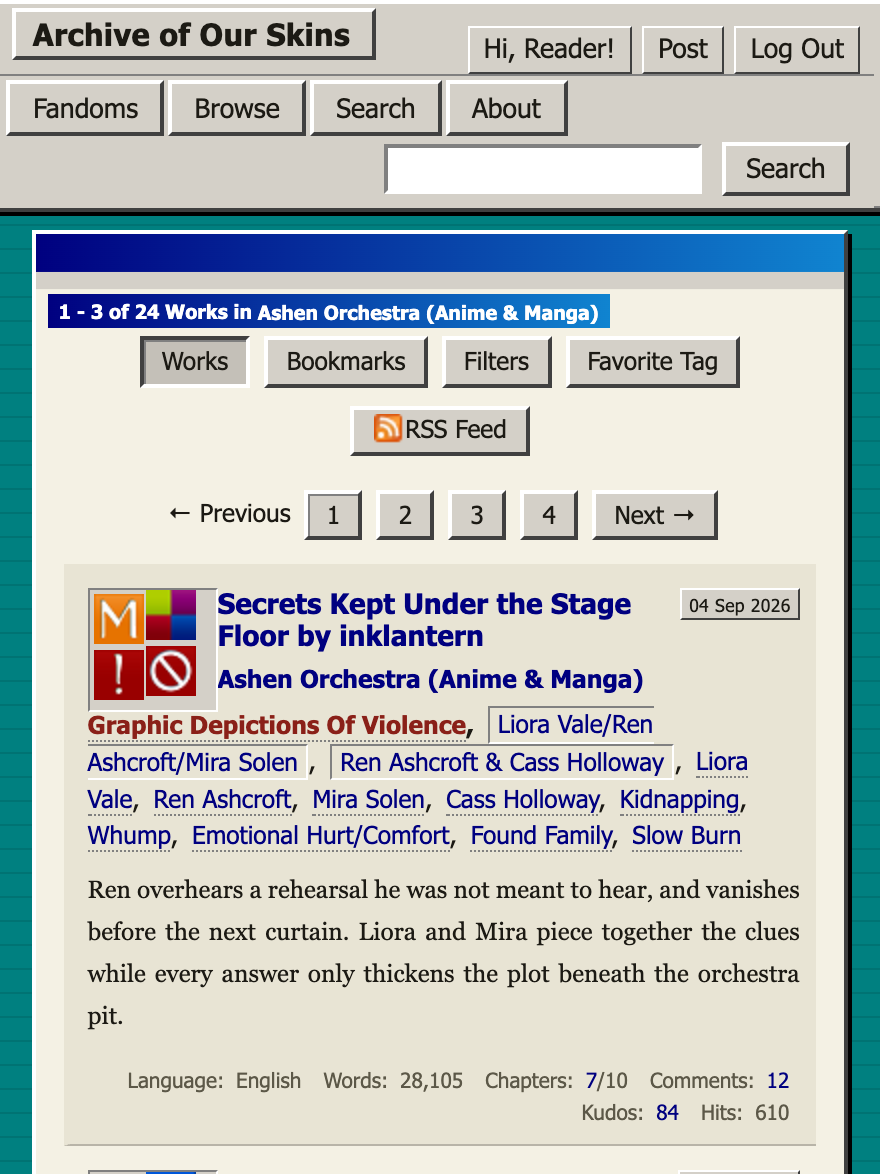
Retro Windows 98
Free AO3 skin with a Windows 98 desktop: teal wallpaper, silver bevels, and a WordPad chapter.
Free AO3 site skins for Archive of Our Own
OurOwnSkins is an AO3 skins hub with free CSS themes for Archive of Our Own. Copy a skin, paste it into AO3, and restyle works pages, tags, and long reading sessions.
AO3 skins collection
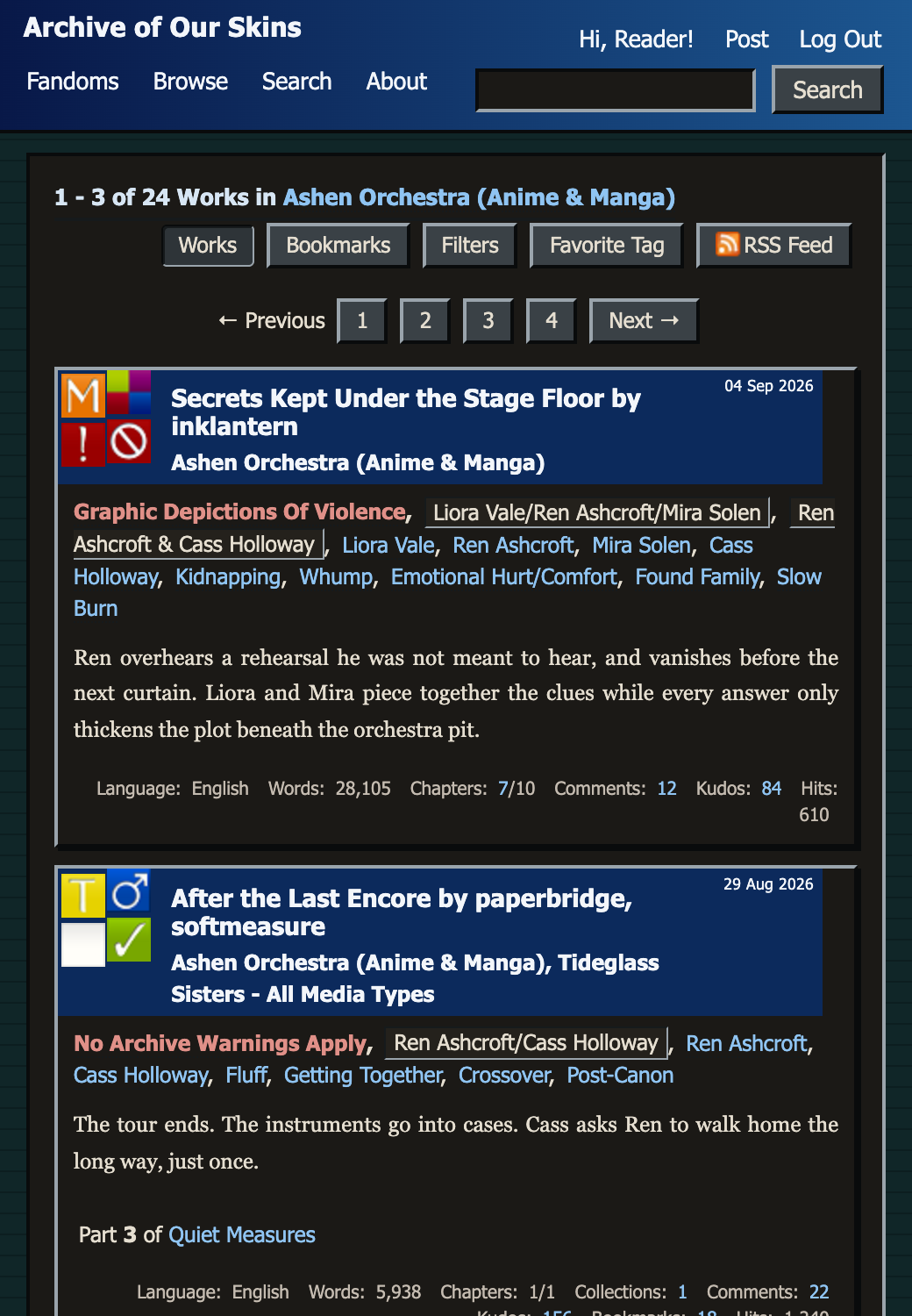
Four free AO3 themes: retro Windows 98 light and dark, pastel Candy Stripe, and a netbar messenger. Copy the CSS or download the stylesheet.
Free AO3 skin with a Windows 98 desktop: teal wallpaper, silver bevels, and a WordPad chapter.
Dark AO3 site skin: the title bar is still glowing after the room goes dark.
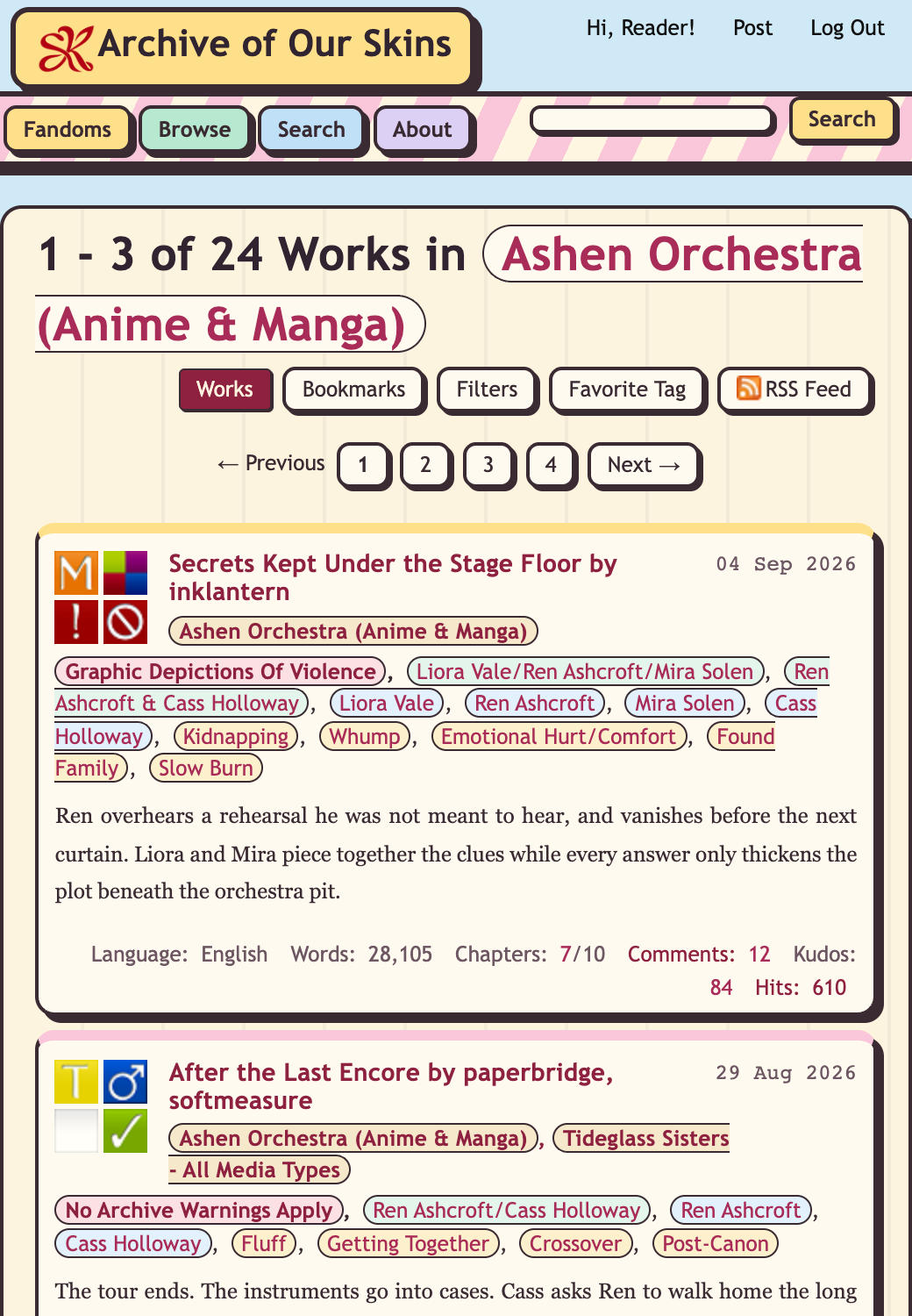
Pastel AO3 skin with pink stripes, lemon stickers, and a cream reading page.
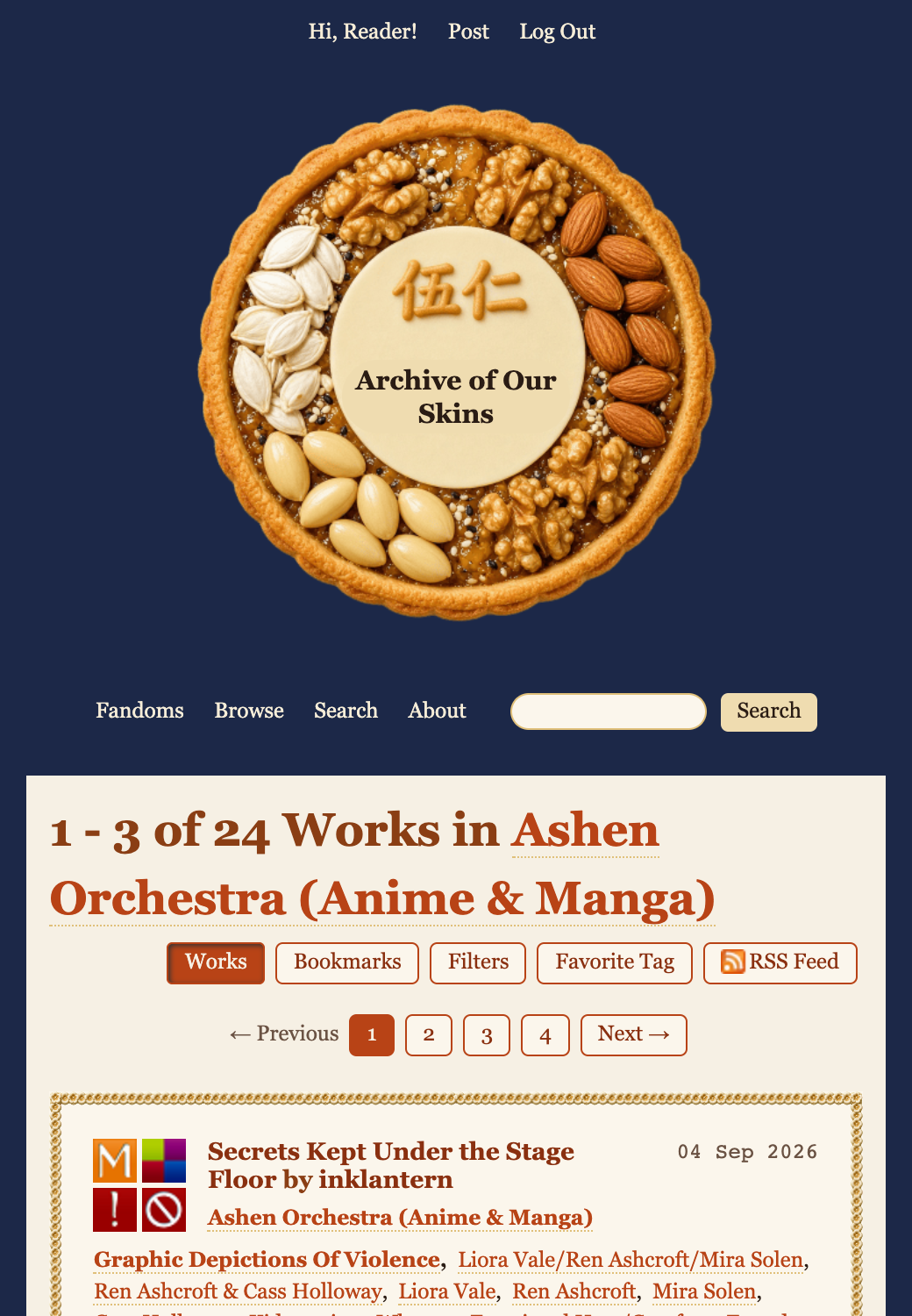
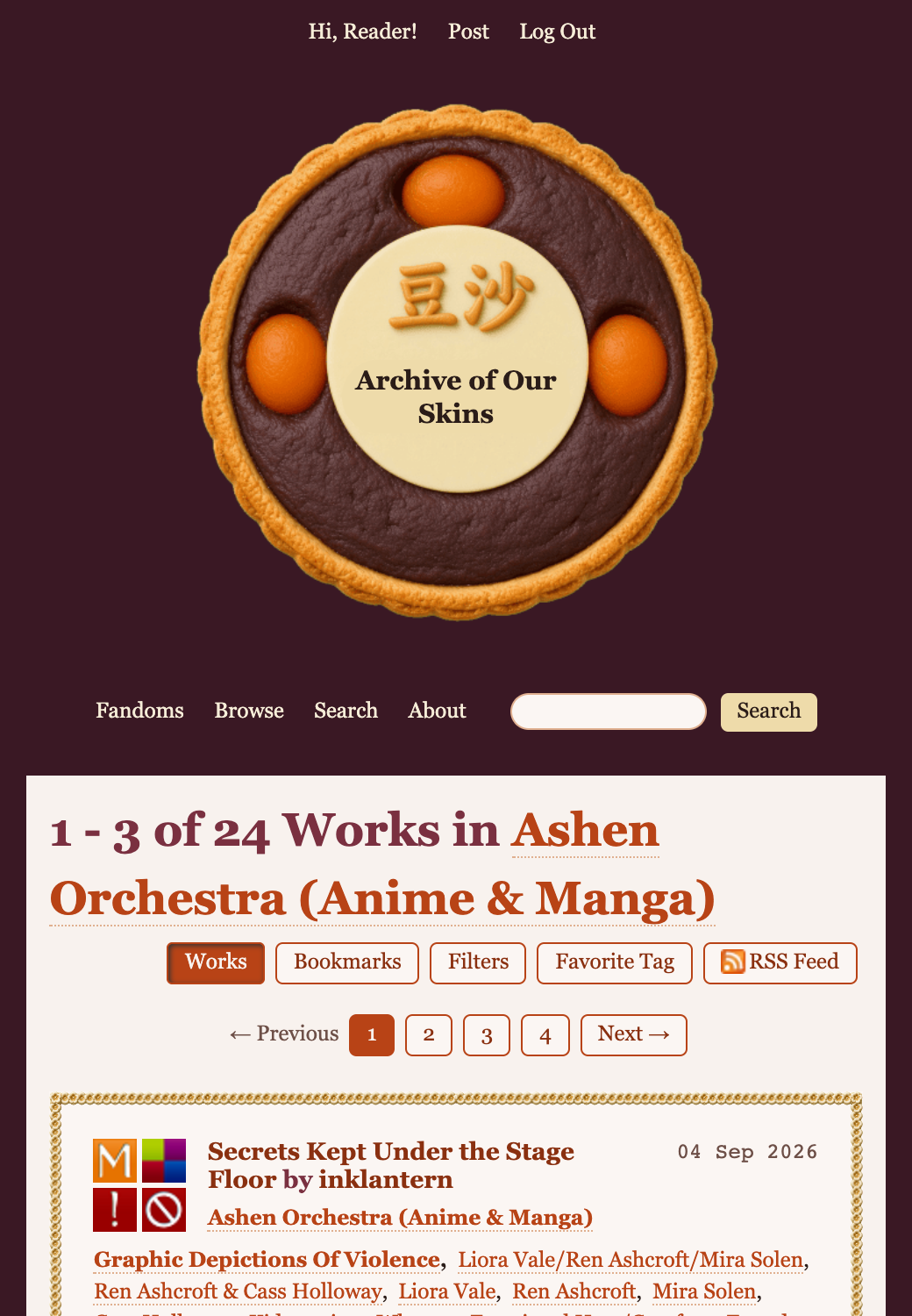
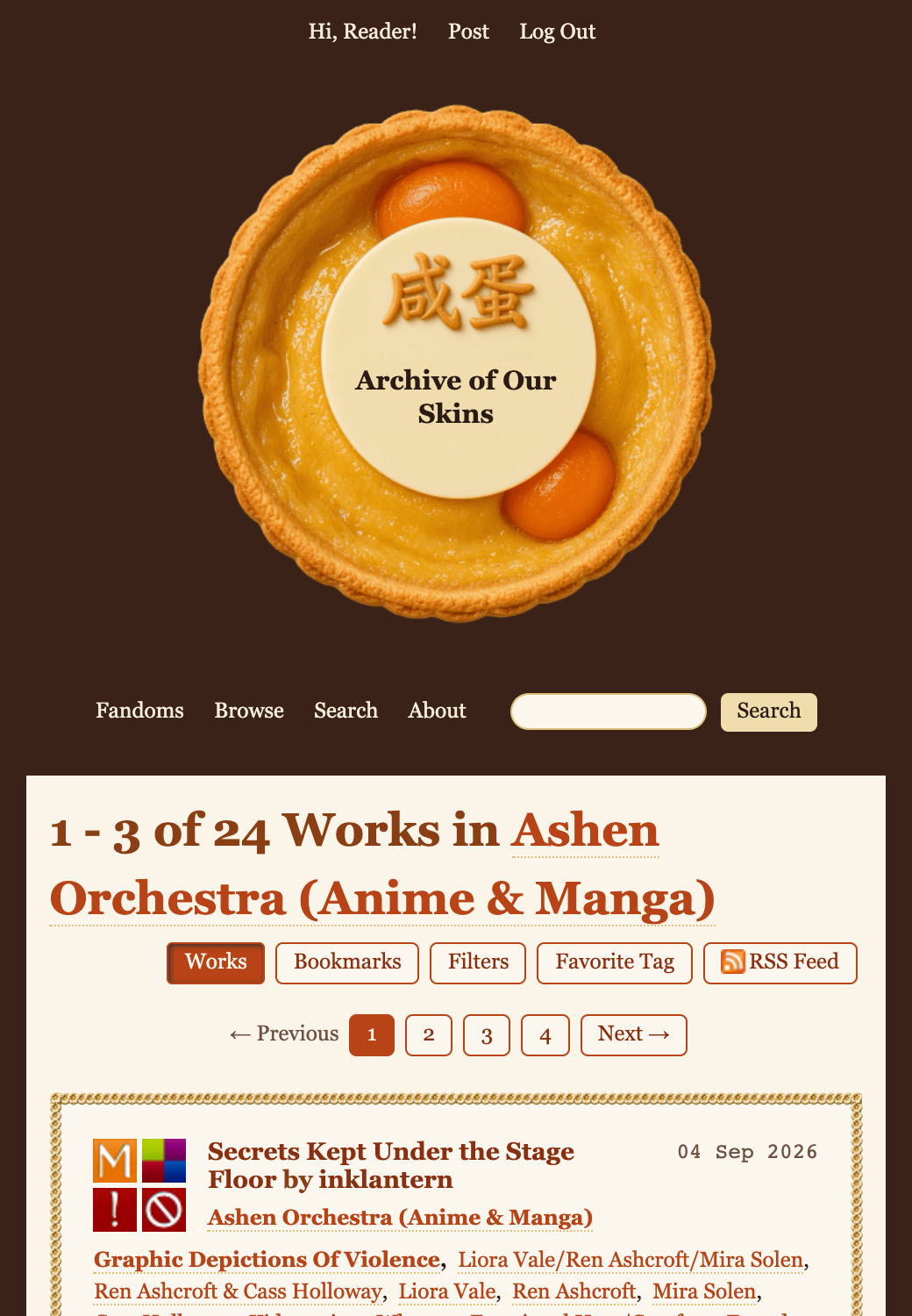
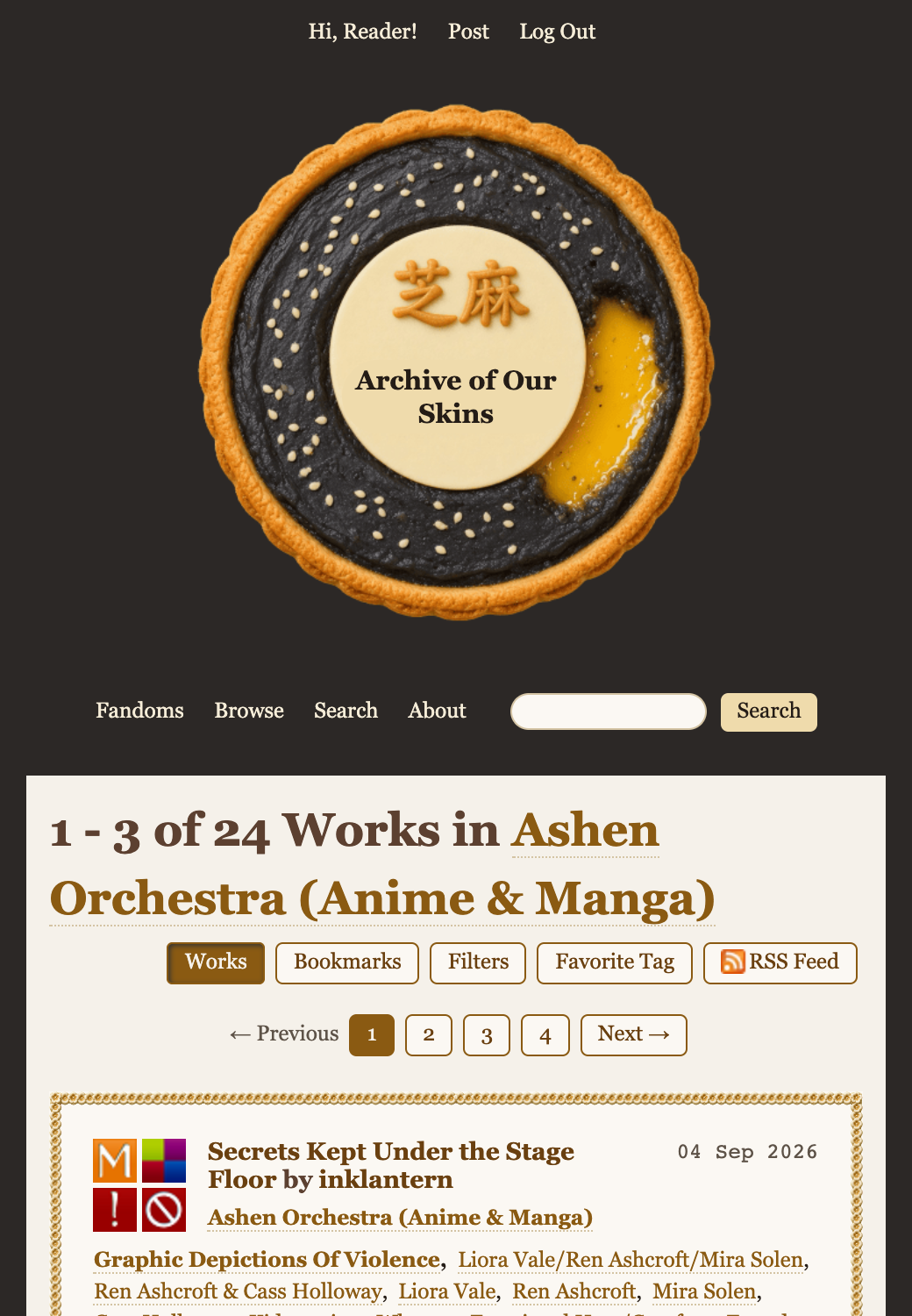
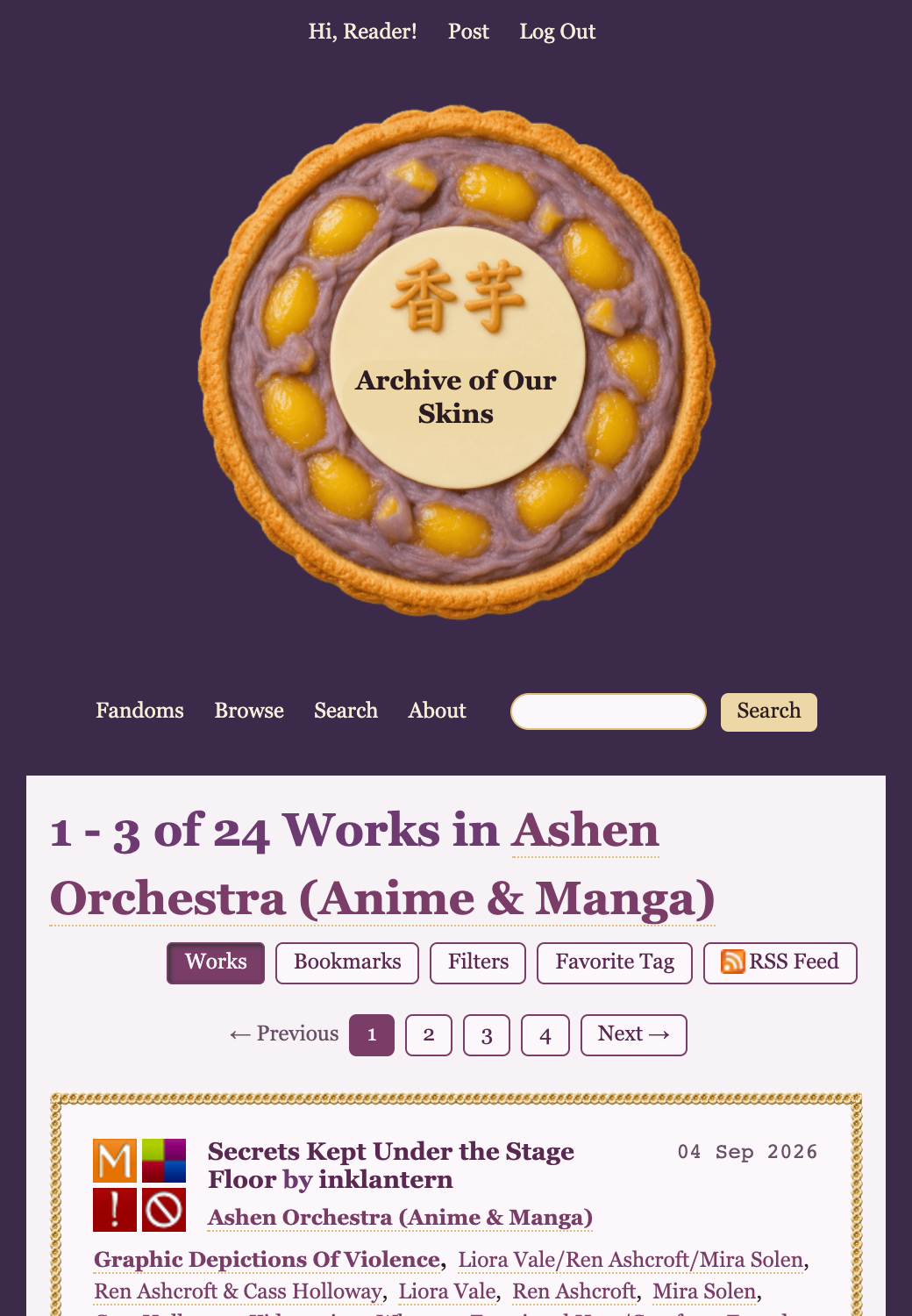
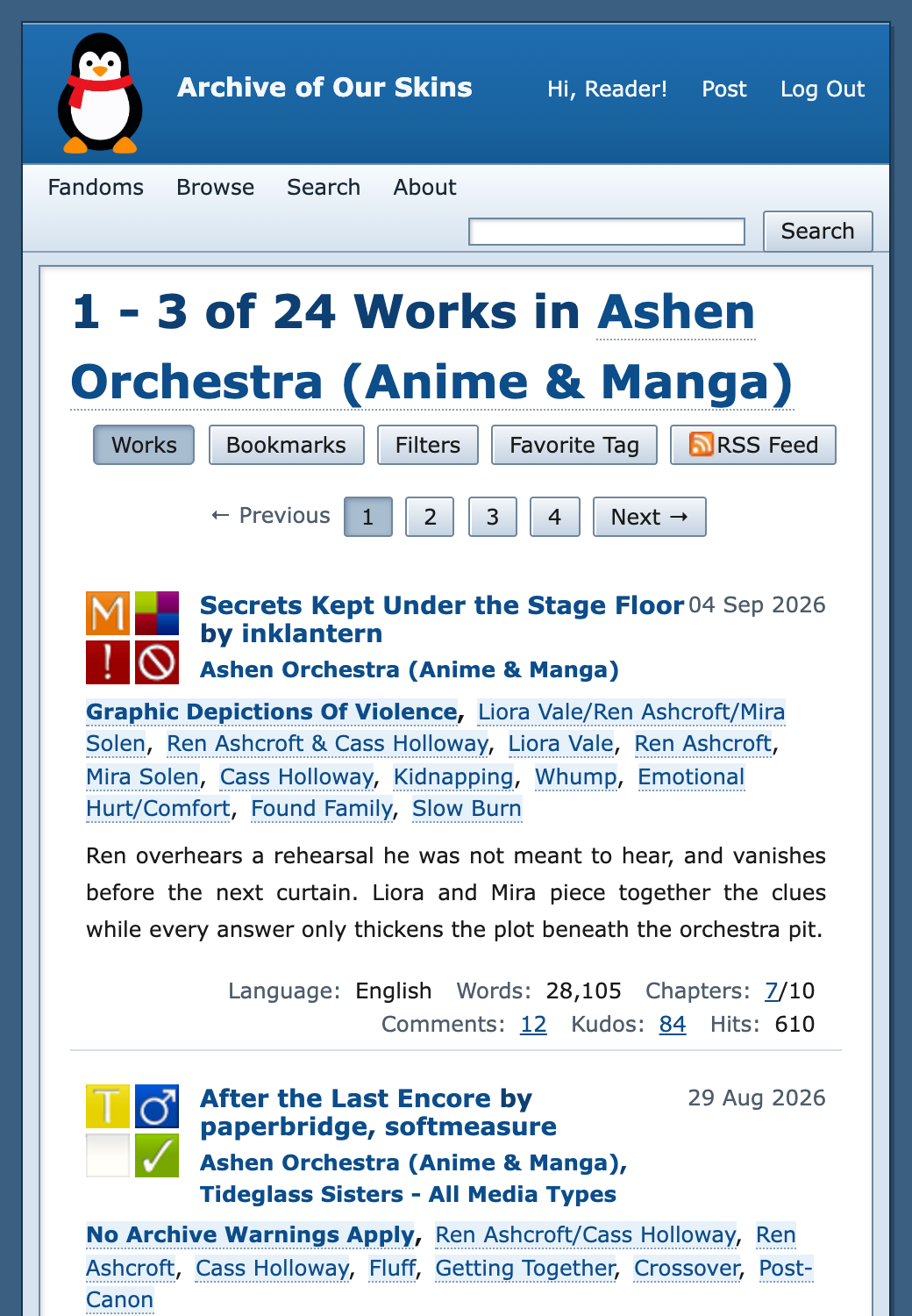
A chat window left open at the internet cafe, with a scarfed penguin on the title bar.
Install guide
Install any free AO3 skin from this page in three steps. You can remove or switch skins anytime in AO3 preferences.
Copy your chosen AO3 site skin CSS or download the .css file above.
On Archive of Our Own, open Skins → My Site Skins → Create Site Skin, then paste the CSS.
Save your new skin, select Use, and return to AO3 to see the custom theme.
Common questions
Quick answers about free AO3 skins, AO3 site themes, and how custom CSS works on Archive of Our Own.
An AO3 site skin is custom CSS that changes how Archive of Our Own looks in your browser. It can restyle headers, tags, work listings, and reading pages while AO3 features stay the same.
OurOwnSkins hosts free AO3 skins you can copy or download as CSS. Browse the collection above, then paste the code into a new site skin on AO3.
Copy or download the CSS, then on AO3 go to Skins → My Site Skins → Create Site Skin. Paste the CSS, save, and choose Use. Full steps are in the install guide above.
Yes. Every AO3 skin on OurOwnSkins is free to copy, download, and install for personal reading. You do not need an OurOwnSkins account.
No. An AO3 site skin only changes the site for your logged-in account. Other readers still see the default layout or their own skin.
Open AO3 Skins → My Site Skins, then choose another skin or stop using the current one. AO3 returns to the default look until you select a different theme.